|
|
|
1. How to Configure Your Mailboxes in
Outlook Express |
|
A. Go online with your ISP B. Open the Outlook Client C. Select Tools/Accounts on the Top Menu Bar 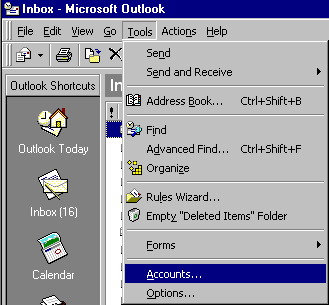
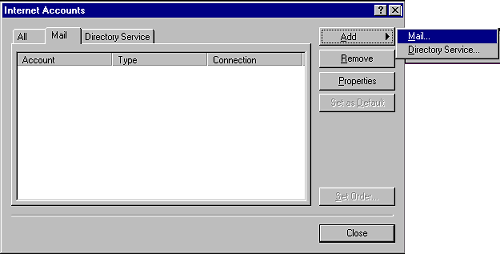
D. Select the Mail tab, Add, Mail as shown below
E. Enter Your Real Name
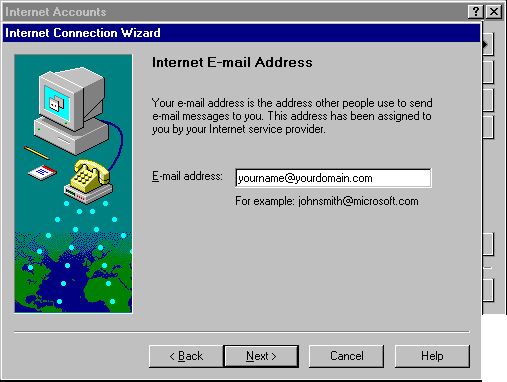
F. Enter your Internet E-mail Address
Example: <yourdomainname.com> If your ISP does not offer an SMTP Server (like AOL), then you can use your domain name as the Outgoing (SMTP) Server. Example: <yourdomainname.com> But, when using your domain name as the SMTP server, you must always check for mail before being allowed to send mail (POP before SMTP).
H. Enter the mailbox name and password as shown below.
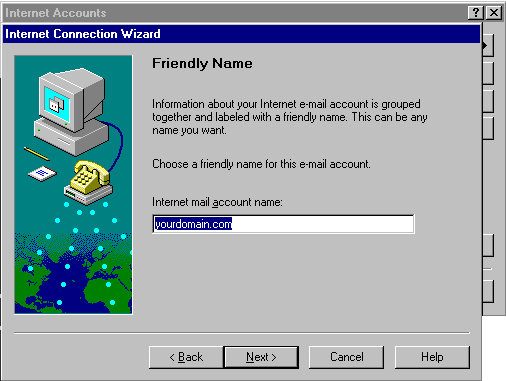
I. Enter a 'Friendly Name' to identify this e-mail box
J. Select the appropriate Connection Type. Most people choose 'Connect using my phone line,' this will bring you online when you select to run Outlook.
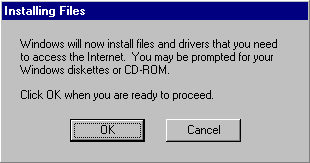
K. Click the 'OK' button to install this mailbox.
|
|
2. Receiving and Sending Email |
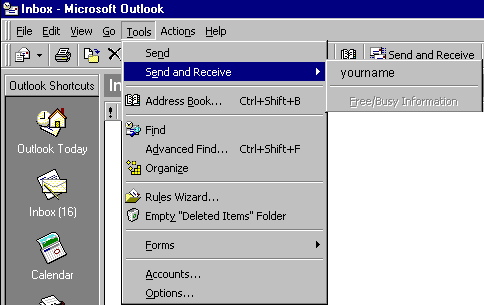
A. Select Tools/Send and Receive from the Top Menu Bar B. You can also receive all of your mail
for all mailbox names configured into Outlook by selecting Tools/Send with the
correct configuration. |
|
Video Audio Websites Web Video CD-DVD Clients Contact Home |